Recently in DIY

Of all the DIY projects we write about, light modifiers are still my favorite. I have a nifty collection of flash diffusers and unusual lighting tricks that I think you'll want to keep in your back pocket.

The DIY Flash Diffuser with Paper and Rubber Band is one of the coolest and simplest devices to date. All you need is an old press release and a rubber band.

paper_flash_diffuser.jpg

And don't forget about this Ring Flash Diffuser for a compact camera. Finally, a legitimate use for styrofoam.

Here's a collection of Five Poorman's Lighting Mods from DIYPhotography.net. I think the barf bag flash diffuser might be my favorite from this list.

And finally, one of the all time classics is to use a windshield reflector from your car as a fill light for outdoor portraits. My favorite of these reflectors (designed to keep your car cool on hot days) has white on the inside and silver on the out. This gives you two surfaces to choose from depending on how intense your fill light needs to be. Give it a try!


twitter.jpg Follow me on Twitter

-


If you travel with a roller suitcase, then you can easily convert it into a tripod for long exposures through the hotel window and for general photography work around the room. And the best part is, this conversion only adds another 6 ounces to your travel load.

All you have to do is position the suitcase where you need your "tripod," extend the handle, then attach the Pedco UltraClamp Assembly ($23.25) and mount your camera. The UltraClamp can support any compact camera, and most light DSLRs such as the Canon Rebel T1i with kit lens. I've used this rig for years, and the UltraClamp works as well today as it did when I first bought it. Plus, you can mount it to chairs, tables, or anywhere else the clamp will tighten. Unlike other rigs of this ilk, the UltraClamp includes a ball head, so chances are you'll be able to position the camera exactly as you need.

When I'm in big cities, I love taking night shots through hotel windows. I'm usually up fairly high and have a good perspective on the hustle and bustle below me. Be sure to turn off room lights if you're shooting through glass, and get the camera lens as close to the window as possible. I also recommend using the self-timer to ensure you don't jar the camera when you press the shutter button.

But wait... there's more! I also make sure I have a few heavy duty rubber bands packed when I travel. They come in handy for all sorts of tasks, including making this portable mic stand from the extended suitcase handle. The one thing I don't want to do is hold the mic when I record TDS podcasts on the road. Those rustling sounds are quite annoying. So I mount the microphone on the suitcase handle and sit on the edge of the bed to record the show. It works great.

Roller suitcases are definitely handy in the airport as you travel from one terminal to the other. But they're also useful once you reach your destination... that is, if you've packed a few key accessories to transform them into creative tools.


twitter.jpg Follow me on Twitter

-


Editor's Note -- Recently I was corresponding with TDS member Brian F Wilkie about a project he was working on. Brian had figured out how to create a unique type of photo album where he output pages with snapshots printed on them, then bound these pages together in a binder. I loved this idea and asked Brian to write a short article for us, which he kindly did. So, in his own words, here's how Brian Wilkie creates his unique output, complete with Lightroom templates so you can do the same. Thanks Brian!

Using Lightroom 2.4, a Canon Pixma Pro 9000 printer, and Red River Paper's excellent Premium Gloss DUO 8.5" by 11" letter-sized stock, I'm able to  create a handsome looseleaf bound album quickly, and fairly easily.

In Lightroom, I start with a  grid filter which gathers all images taken in a  particular year with a rating of 1 star or above. The choice of rating will vary with how hard you are on yourself and whether you want to include family snapshots as well as fine art images.  Select all of the pictures (command A), then create a collection called Album 20XX (filling in the appropriate year). Now, you can use delete to remove any images which are repetitive, virtual copies you made for different print sizes, or black and white versions. By the end of the process you will have a good idea of how big a printing task you have undertaken.

Printing

You can download a pair of print templates that make good use of the real estate on a US letter page, as long as you have a printer that can handle borderless printing. These templates provide 4 prints up at 5.5" inches by 3.67" inches on a page. I use the "rotate to fit" option so that portrait mode images are printed as large as possible, although this means that on some pages viewers will need to turn the binder on its side to see the pictures oriented correctly. I also enable Page Number under Page Options to help keep track during printing, and the Identity Plate option for my Logo. Finally, the Photo Info option is enabled using Capture Exposure Date as a template. Be careful not to be too wordy in captions or the text will wrap around and the photo size may be restricted.

Printing is done using the appropriate ICC profile downloaded from Red River Paper with Print Sharpening set to "High" and Media type to "Glossy".

The printing itself is completed in two passes. First, the User Template "4up letter+data Odd" is selected, then Print is clicked. At this point, settings options become printer and computer operating system specific. As I mentioned before, I use a Canon Pro9000 on a Mac running OS 10.5. In the print dialog box under Paper Handling, I select Pages to Print - Odd Only. I also select Page Order - Normal. Under Quality and Media I select Media Type - Glossy Photo Paper and Print Quality - High. Under Borderless Printing, I select Amount of Extension - Min. This allows the page number to be visible on the final print since Lightroom puts this in the extreme lower right corner of the page.

After the first pass, carefully flip over the set of odd pages and put them into the paper feed. The top sheet should now be the back side of page one, but careful experimentation is called for here. Select the user template "4up letter+data Even" and click Print. Now under Paper Handling change  to Pages to Print - Even Only.

All you need now is a good quality 3-hole punch. Remember, this is heavy paper stock. Then put the pages in to a quality 3-hole binder.  I use a nice leather one from the local office supply store. The end result is a good looking, well printed, and durable album. By my calculation the cost is around 28¢ per image, less if you shop around for discounted Canon ink.

Of all the cameras I had in the past, my favorites were made by Contax. The first model I bought (when I had absolutely no money) was the Contax 139 with the Zeiss 50mm f/1.7. I later added the Zeiss 35mm f/2.8 and 135mm f/2.8 lenses. It was thrilling every time I picked up the camera. Over the years, I had other favorite bodies too, including the 167MT and RX.

After I made the transition to digital photography, I sold much of my film equipment. I did keep, however, my absolute favorites. I wasn't quite sure why at the time; I just didn't want to part with everything from the past. So I still have the Contax RX body, 5 prime lenses, and the pocketable Contax T. I also kept the Hasselblad 500C with both the 80mm and 150mm lenses.


The Transamerica building in San Francisco. Shot with an Olympus E-P1 with a Zeiss Distagon 35mm lens mounted. Photo by Derrick Story. Click to enlarge image. See more images with this rig on the TDS Flickr page.


I didn't use any of this equipment for a long time. Then, when I started shooting with the retro-looking Olympus PEN E-P1 camera, I got a hankering to try the collection of Zeiss lenses on that body using the Rayqual Micro Four Thirds adapter for Contax M lenses. I wrote about the experiment in the article Zeiss Lens on Olympus E-P1? Oh Yeah!. There are some good reader comments there too.

When I wrote the article, I promised to publish shots using a Zeiss lens on the E-P1. My opportunity appeared this week when I had meetings in San Francisco. I packed the Olympus with the 35mm Zeiss Distagon lens, and clicked photos as I walked from one appointment to the next. You can look at the set of images on the TDS Flickr page. These are Raw files processed in Adobe Camera Raw.

I had a great time shooting these images. I was manually focusing with the well-damped focusing ring in the Zeiss Distagon. I set the E-P1 in Aperture Priority mode and used the click-stop aperture ring on the Zeiss lens to set the f/stop. In all honesty, I felt more like an artist than a snapper using this rig.

Now that I have the bug, I'm going to see about mounting these lenses on my Canon 5D Mark II. Since it's a full frame sensor, everything should look as it did when they were mounted on my Contax bodies. I'll keep you posted. In the meantime, I'm going to continue to shoot with the Olympus E-P1 and my collection of Zeiss glass.


twitter.jpg Follow me on Twitter

-


The Olympus PEN E-P1 is a versatile camera that can accept Leica, Nikon, and Zeiss lenses with the right adapter. I have a small cache of Zeiss prime lenses in the Contax M mount that are part of my Contax RX kit. Since I don't shoot very much film these days, I've been looking for a way to put this wonderful glass to work. I read about the Novoflex Four Thirds adapters, but I could not find the Contax mount anywhere (the Leica version seems more plentiful here in the States).


Carl Zeiss 50mm f/1.7 Contax MM mount on an Olympus E-P1 using a Rayqual CY to M 4/3 adapter. Photo by Derrick Story


The Search for a Contax Adapter

After scouring the Web for any adapter that would work, I found a great site called Japan Exposures that had all sorts of photographic exotica, including Rayqual Micro Four Thirds adapters for Contax M and Nikon F mounts. I purchased the Contax mount for 18,700 Yen, and they shipped it to me within a few days. I had a very good customer experience with them.

Mounting the Lens on the E-P1

The Rayqual mount is excellent. There's no wiggle at all. It's finely machined and has a solid feel. The first lens I tested on the E-P1 was the Zeiss 50mm f/1.7 MM. The set up is easy. You mount the adapter on the body, then attach the lens to the adapter. Everything clicks into place. There are no electronic contacts on the adapter, so you work in aperture priority mode. Focus with the lens wide open, then if you need too, stop down to make the exposure. The E-P1 sets the appropriate shutter speed for you. It worked great. If you have lots of light, then you can focus stopped down. Although I must admit, what I wanted to do was shoot wide open most of the time taking advantage of the unique qualities of the Zeiss Planar lens.


Top view of Carl Zeiss 50mm f/1.7 Contax MM mount on an Olympus E-P1 showing the Rayqual CY to M 4/3 adapter. Photo by Derrick Story


You can configure the E-P1 for manual focus-assist giving you 7X magnification with just a push of the OK button. I love this mode and use it to get the focus just right, then back off to normal view and take the picture. Focusing on the 3" LCD was easier than I expected. Working with the silky smooth focusing ring and the click-stop aperture ring on the Zeiss Planar provided a truly classic photographic experience.

Picture Quality

As far as picture quality, my favorite lens was the Zeiss Distagon 35mm f/2.8. The shots were beautiful at every aperture setting. Next, I also liked the 50mm f/1.7 and the 85mm f/2.8. They were a little softer on the edges than the 35mm, but still quite good. I was disappointed with both the Zeiss 135mm f/2.8 and 200mm f/3.5 telephotos. They weren't as sharp on the E-P1 as they are on the Contax bodies. It seemed to me that the E-P1 performs better with the wider and standard lenses than with the longer focal lengths. I will continue to test and report more on this.


Existing light shot using the Carl Zeiss 50mm f/1.7 Contax MM mount on an Olympus E-P1. The ISO was set to 1600, aperture to f/1.7, and was able to get a shutter speed of 1/30th even in this very, very low light. Photo by Derrick Story


Final Thoughts

Shooting with the Contax lenses on the Olympus E-P1 is a brand new experience. It's so unique, it's almost hard to describe. I'm once again focusing the camera myself, yet I have a big 3" LCD with digital focusing assist to provide a new twist on the process. The camera looks good with any of the Zeiss lenses mounted, and the shooting is outright fun. Most of the camera functions work just fine, including flash, image stabilization, and even movie mode. There are a few gaps in the metadata because the camera can't report aperture or focal length, but you get ISO, white balance, shutter speed, etc. The shots look different than with any other lens/camera combination.

For the time being, I'm going to work with these lenses on the E-P1 and see how it affects my photography. I'm already feeling more creative every time I pick it up. I'll publish a collection on our Flickr site soon.


twitter.jpg Follow me on Twitter

-


You can make photo art notecards that won't be just good; they'll be professional too. And I'll show you how. This workflow uses Aperture software, an Epson printer, and Red River paper. It's fast, efficient, and archival. Once you're set up, you can print just a few cards whenever you need them, or for larger runs, spend a rainy afternoon creating entire sets of cards to sell or give as presents. Of course you can make substitutions to this workflow, but if you have the tools listed here, that's where I'd start.

Equipment

  • Quality ink jet printer. I'm using the Epson R2400 for this project.
  • Red River notecard stock. For glossy surface, use 60lb. Pecos River Gloss (#8451) and for matt surface, I recommend Premium Matte C2S (#1567). Both stocks are 7" x 10" and fold down to a 7" x 5" note card.
  • Photo software. I highly recommend Aperture 2 (or later) for this project. Why? Because I create the notecards using Aperture's book making tool. This allows me to design everything precisely as I like, and then it remembers all my settings so I can revisit the project at any time and print more cards that look *exactly* like the original set.
  • Envelopes. You can use what ever you want here, I found Darice 5" x 7" envelopes at the craft store for about 10 cents each.

Designing Your Card

Since I'm using Aperture, all of my images were already organized. I decided to make a themed set of cards featuring my recent shoot at Bodie State Historical Park in Northern California. I highlighted half a dozen shots for this project, then clicked on File > New from Selection > Book. This is the first step to opening the layout tool. Next, in the following dialog box, choose "Custom" from the "Book Type" popup menu. We won't be using any predesigned templates for this project. Click the New Theme button, give it a name, such as "5 x 7 Notecard," and enter the following information:

Page Size - Width: 7", Height: 10", Margins - Top: 5.5", Bottom: 0.5", Inside: 0.5", Outside: 0.5". Then click OK.


The Aperture layout tool. It was originally designed for books, but it's great for notecards too. Click to enlarge image.


Your selected images will be added to the new project you just created, and you'll be greeted with the layout tool interface. Open up Master Pages (Gear icon > Show Master Pages), and click on the 1-up template. Go back to the Gear icon and choose "Show Layout Options." You'll see new dialog boxes appear above the Master pages that allow you to specify settings.

Go back to the Gear menu, choose Add > Photo Box. A placeholder box will appear on your 1-Up Master page. Click on it to select, then add these numbers to the Size & Position box that's above the Master Pages box:

X: 0.50, Y: 0.65, Width: 6.00", Height 4.00", Angle: 0°. You can adjust these settings later to your particular tastes, but this will get you started. Then right-click on the photo placeholder and choose from the popup menu: Photo Box Alignment > Scale to Fit Centered. You've now set up your template. You can add text by choosing Gear > Add > Text box. Type your text in it, then click on the "T" at the top of the interface to format it. You'll probably have to rotate it 180° if you want it to print correctly on the back of the card.

Now go to the Pages box (below Master Pages) click on the 1-Up thumbnail, and drag a photo from the Filmstrip to the empty placeholder in the big browser window. To make sure your Master Page settings are honored, I recommend going back to the Gear icon and choosing: Reapply Master. You've now designed your first notecard. You can add more notecards by going to the + icon and selecting "Add New Page" from its popup menu. I created eight of these 1-Up pages for my Bodie notecard set.

Get Ready to Print

As with any big printing project, make sure your screen is calibrated and your printer is full of ink and ready to go. I choose the R2400 for this project because it handles card stock easily, plus it seems to like Red River paper. To avoid paper feed problems however, I only load one sheet at a time for notecards.

For notecards using the 60lb. Pecos River Gloss, use the following settings in Aperture.


The Aperture Print Dialog. You can save your settings as presets so it's easy to print the job later on. Click to enlarge image.

Select the notecard you want to print, then click the "Print" button in the lower right corner of the Aperture interface. A dialog box will appear with "Custom Book Preset" selected in the left hand column. Make a test printing one card, so I recommend that you use the "From X to X" setting instead of Print All. Next, select your printer from the popup menu. And for paper size, I've had great luck with 8" x 10" sheet fed (even though the paper is really 7" x 10"). I set the ColorSync profile for Epson glossy paper (in this case, SPR2400 PremGlsy Photo.icc), then click the Save As button in the lower left corner to save this preset. Give the preset a descriptive name, such as "R2400 7x10 Notecard Glossy," click OK, then print. Aperture will remember this preset, and you can use over and over again.


Sample notecard before folding. Red River paper is scored in the middle so it's easy to fold and get a professional looking card. Click to enlarge image.

You have other options in this dialog box too, such as setting Black Point (which opens up the shadow areas) or increasing gamma (which brightens up midtones). The nice thing about these adjustments is that you can tweak your output without having to mess with the picture itself. If I do make print adjustments, I note those settings in the description area of the photo so I can use them again next time.

To print matte surfaced cards, I swap out the black cartridges in the R2400, then create a new preset in the Aperture Print dialog box that uses the Enhanced Matte Paper ICC profile. I then load up a sheet of Premium Matte C2S and make a test print. If I'm not satisfied with the initial output, such as the shadow areas rendering just a little too dark, I make a "New Version from Version" by right-clicking on the image. Now I can adjust the image for the matte surface and try another print.

lynda_aperture.png

Since all of my print settings are saved as presets, and my card layouts are saved as templates, I can come back to this project when ever I want to print additional cards. If you use Aperture's Vault, it will save your settings to a backup drive.

Final Touches

Once all the printing was done, it was fun to spread out the cards and choose my favorites. Some images looked better with the glossy surface while others were really nice on matte. I carefully folded the cards along the score, then bundled each one with its matching envelope. I even found 5" x 7" cardboard boxes at the craft store that I could use for packaging sets of notecards.

Obviously there are variations to just about every step in this process. You can use other photo applications or printers. The tools I chose were the result of testing, with these being the easiest and most efficient.

And I have to say, now that the project is over, making custom notecards from my own pictures is very satisfying.


twitter.jpg Follow me on Twitter

-


Technorati Tags: , , , , , , , , ,

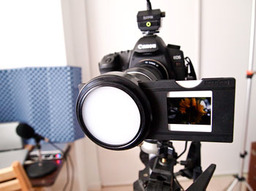
If you have a full frame DSLR, you can easily digitize your favorite 35mm slides at home. I'm using a Canon 5D, Sunpak 444D flash, and a 1980s slide copier. That's all you really need.

Like many long time photographers, I have a collection of 35mm slides. Some of these images are prized shots that I would love to have digitized. I tested a few outside services, but after viewing the results, really wanted to have more control over the process. So in about an hour, I rigged up the home slide digitizer using the following parts.


Photo of Canon 5D 35mm slide digitizer by Derrick Story. See complete set of images on the Digital Story Flickr page.


  • Canon 5D DSLR
  • Sunpak 444D flash in manual mode
  • Vintage 35mm slide copier attachment
  • Tripod
  • Photoflex arm to align the flash
  • Photoflex flash diffuser
  • Cable release

I had a Canon T-ring adapter for the slide copier so it would mount to the 5D. All exposure settings are manual. So I set the ISO to 100 and shutter speed to 1/60th. There's no aperture setting on the slide copier. Instead, you control exposure by how much light you output from the flash. That's why I dug out an old Sunpak 444D flash. It has manual exposure settings (1/16th through full), and I had an extension cord for it too. I set the flash on 1/8 power for dense slides, and 1/16 power for those a bit lighter. I position the flash a few feet from the front of the slide copier and align it so the light evenly illuminates the image.

One of the advantages of this approach is that I can shoot in Raw mode. So once I digitize the image, I can use Aperture, Lightroom, Adobe Camera Raw, or even iPhoto to tweak tone and color. With the 12MP 5D, the file resolution is 3929 x 2619. If I use the 5D Mark II, then I get 5616 x 3343, enough to make a 12" x 19" print at 290 ppi.

I wouldn't recommend this approach if you have hundreds of slides to scan -- an outside service makes more sense in those situations. But when you want to digitize a handful of your favorite images, this method works great. And for Canon shooters who have upgraded from the 5D to the 5D Mark II, you can put your old 5D to work and just leave the rig set up permanently in your studio. In fact, why not tether it to a laptop for a slick digitizing production rig?

I have sample images and lots of shots of the rig itself on the Digital Story Flickr page, including a comparison scan from DigMyPics and this method.

For more interesting home projects, be sure to check out the Photography DIY section on The Digital Story.


twitter.jpg Follow me on Twitter

-


DIY Copy Stand for iPhone 3GS

| 1 Comment

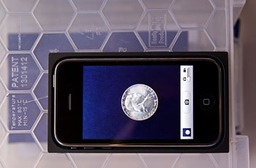
The camera in the iPhone 3GS has improved close-up capabilities, tap focus, and more resolution than previous models. You can use the 3GS to photograph small objects, business cards, even duplicate 4" x 6" prints. With this DIY copy stand that's easy to make, you can produce high quality images with just a couple taps on its screen.

If you've ever tried close-up work with the iPhone, you know you have two challenges. The first is holding the camera steady enough to avoid camera shake. The second is getting the plane of the camera parallel to the plane of the subject to avoid distortion. This little device helps with both, plus diffuses the light for a more flattering rendering.

I have step-by-step photos showing the key elements of this project on The Digital Story Flickr page. In short, it works like this. You remove the tray from the iPhone packaging, drill a hole in it for the lens to see through, cut an opening in the bottom of a translucent box to set the tray in, and you're done. It's really that simple. I recommend that you start with a box that's at least 6" tall. That will give you enough distance to copy 4" x 6" prints. You can use "risers" such a little boxes to photograph smaller items that need more magnification. Here's a short instructional video that provides a nice overview.

Please feel free to add your comments, improvements, or variations on this project. The iPhone 3GS is a handy little camera, and I want to squeeze every ounce of capability out of it.

More on the iPhone 3GS

iPhone 3GS Movie Making Basics - Video for All

"iPhone 3G S from Photographer's POV" - Digital Photography Podcast 180


twitter.jpg Follow me on Twitter

-


This week Stephanie begins by taking you shopping to a bargain store, then heads back to the studio to design a custom notebook that features your photography on the cover. Even though they are easy to assemble (and very affordable), these beautiful notebooks make excellent gifts.

You'll learn, step by step, how to take apart an existing notebook, customize the front and back covers, then reassemble it. The final product becomes an expression of your art.

Other Creative Output Projects with Stephanie

Make a Custom Photo Gift Bag (Video Tutorial)

Buckle-Up Frame Present for Dad on Father's Day

A Time to Remember - Make Your Own Photo Clock

Packing Tape Transparencies

Buckle-Up Frame Present for Dad on Father's Day

| No Comments

Unfortunately, many people these days have to tighten their belts to make ends meet. It's tough to think about gift giving when so much of your money is put toward paying bills. But that doesn't mean you should forget about good ol' dad on Father's Day (June 21).

Consider making a picture frame that's not only unique looking, but surprisingly inexpensive as well. Pay a visit to your local thrift store and purchase a leather belt and frame. The belt can be any color, however, the width of it should be approximately the same size as the frame's surface.

Measure the sides of your frame, corner to corner. Buckle the belt and cut it into strips that are the same length as the sides of the frame. Position the strips over the frame and miter the corners (45 degree cut) for a clean look. Adhere the pieces of the belt to the surface using a strong adhesive like Beacon's 3-in-1 Advanced Craft Glue.

After the glue dries, it's ready for your photo. Select one that's personal and special to both of you. The frame will look like it was an expensive purchase, and your picture will be a priceless keepsake.