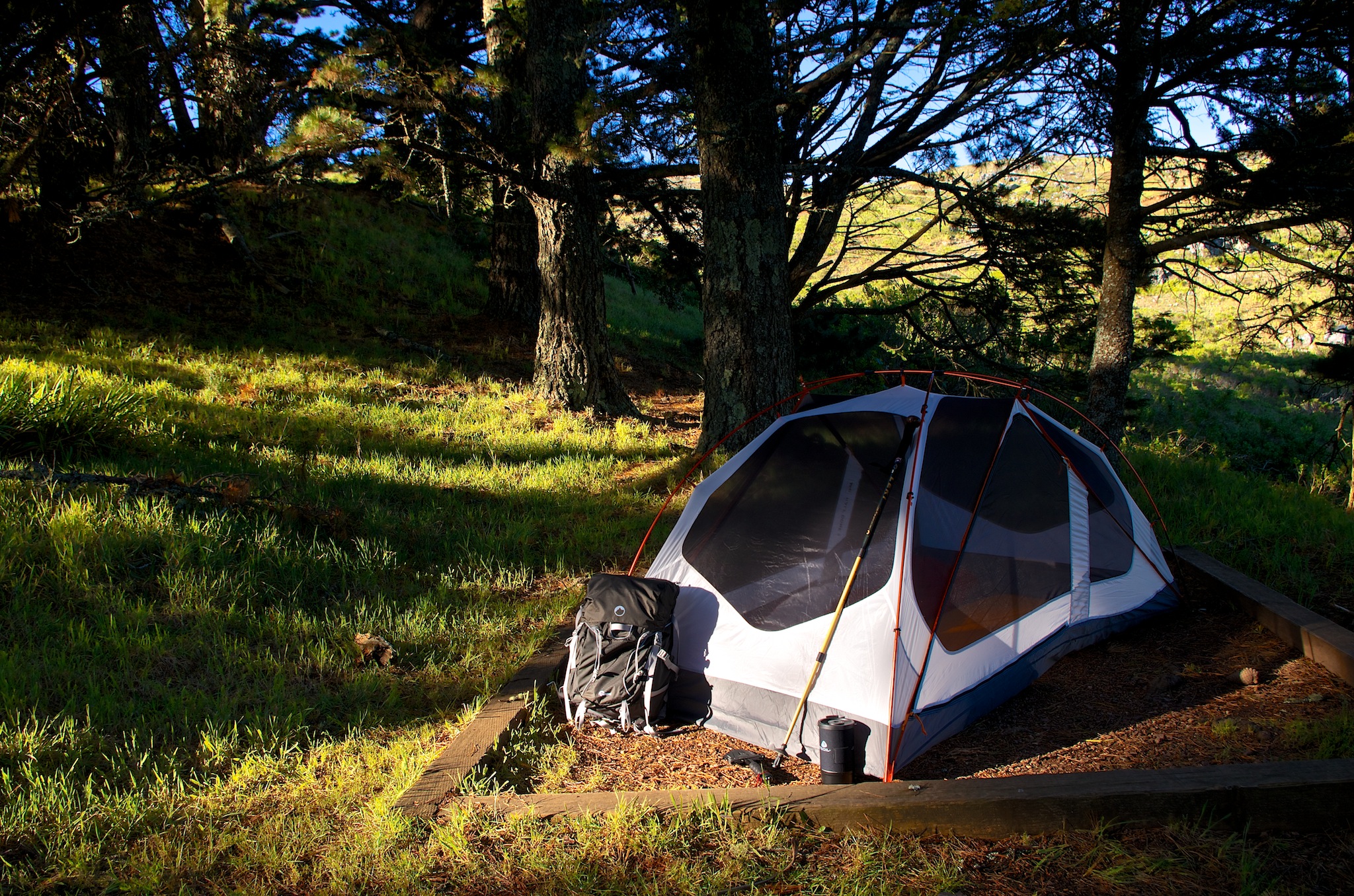
It's difficult to describe how an overnight hiking trip can rejuvenate the soul. So instead, I'm going to express those thoughts via a short movie that I created after my last adventure.
I packed a Lowepro Photo Sport Pro 30L with a Pentax K-5 DSLR, a couple of lenses, and my camping gear. With food and water, my entire kit weighed 32 pounds. That was all I needed. And I returned from the mountains a refreshed man.
I hope you enjoy the video. And maybe you'll embark upon your own adventure this summer...
Want to Comment on this Post?
You can share your thoughts at the TDS Facebook page, where I'll post this story for discussion.
Originally I was thinking of using the 60D instead of the 5D Mark II. As it turned out, I had to send my 60D to CPS to have the grip reglued. So I went with the 5D Mark II with the 70-200mm, which I used most of the time. But when I did need a short lens, I grabbed the OM-D. I prefer this to changing lenses while on the run.
Here's a 1-minute peek inside my Pro Messenger 200 AW to show you how I set up the bag.
I carried this rig all day, logging miles up and down Market St., across the water on the Larkspur Ferry, and with me in restaurants for some after-assignment celebration. (I don't like to leave camera gear in the car!) I'll be working with this same set-up later this week for my 3-day assignment covering the Artisan Cheese Festival.
Want to Comment on this Post?
You can share your thoughts at the TDS Facebook page, where I'll post this story for discussion.
Join me on my Instagram site as I explore the world of mobile photography.
Shooting video is a lot more fun than editing it. If you're one of those photographers who never took the iMovie dive, you might want to get your feet wet with iMovie for iOS and an iPad.
"Surfacing" was edited, produced, and shared solely on an iPad 3 running iMovie for iOS.
The $4.99 app available in the iTunes App Store is a great introduction to the power of non-linear video editing. You can trim, add transitions, move clips, add titles, manage sound tracks, and share your finished product online. By way of example, here's a short movie titled Surfacing, where all post production work was accomplished on an iPad 3 running iMovie.
I recommend that you use the Apple iPad Camera Connection Kit to copy digital camera video to the iPad, then spend 30 minutes or so playing with it in iMovie. Apple provides a comprehensive Help Site to get you up to speed quickly.
Who ever thought that getting an iPad would finally get you into movie editing?
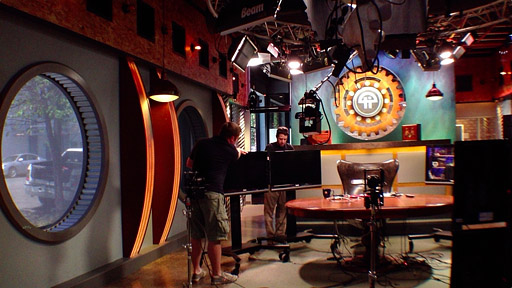
What goes on behind the scenes at Leo Laporte's TWiT studio in Petaluma, CA? I recently spent an afternoon there recording scenes with a 3rd generation iPad to create the time lapse movie, TWiG in 60 Seconds. The process was as interesting as the activity I recorded.
Screen grab from the time lapse movie "TWiG in 60 Seconds" (This Week in Google) recorded at the TWiT Brick House Studio with a 3rd generation iPad.
Why iPad?
The latest iPad features a 5-megapixel iSight camera that records 1080p video at 30fps. Its low light performance is much improved over the 2nd generation model. Combine that hardware with iStopMotion for iPad, and I have a complete solution in a very portable package.
TWiG in 60 Seconds, the movie
How Did You Record the Panning Scenes?
One of the impressive features of the TWiT Brick House Studio is how big the facility is. In order to convey that sense of space, I wanted to pan during the movie. To accomplish this, I used the StarLapse camera motion system made by Losmandy. The basic system sells for $575, and it includes camera mounting plates, battery-powered controller, interconnecting cable, and a 12-volt cigarette lighter power cord.
How Did You Mount the iPad to the Rig?
Makayama makes a clever accessory called the Movie Mount for iPad. Not only can you attach your iPad to a tripod or motion system, but the mount also accommodates accessory lenses and includes a shoe mount (for microphones, etc.). By using the Makayama, I was able to attach a wide angle lens to the iPad so I could capture more of the Brick House Studio environment.
The Workflow
Once I had all of the hardware in place, I launched iStopMotion and set it to record a frame every 3 seconds. I captured a variety of scenes, some with panning, and others without.
I then used the DropBox feature in iStopMotion to upload the raw footage to my online storage. By doing so, I could access the files from my MacBook Air, and assemble the movie using Final Cut X. I uploaded the finished file directly to YouTube from Final Cut.
In the past, I've also done the editing right there on the iPad using iMovie, such as in this title, The Overlook.
Final Thoughts
When Oliver from Boinx Software came to me with the idea for this movie, I wanted to do it right away. What a great opportunity! And thanks to the support from Leo and his crew, plus the great guys at Losmandy and Makayama, we were able to take you behind the scenes at the TWiT studio for a glimpse of how Leo Laporte informs and entertains us on a daily basis.
Accessible time lapse photography is a gift of the digital age. And now, thanks to Boinx Software, it's easier than ever to create stop motion and time lapse video with just an iPad 2. I've been testing the beta version of iStopMotion for iPad ($4.99 in the App Store), and I can tell you right now... it's a blast.
"The Overlook" - recorded with the camera on an iPad 2 with iStopMotion, then finishing touches added in iMovie for iOS. No additional cameras or computers used. By Derrick Story.
To test the nimbleosity of this app, I set out to record, edit, and publish a time lapse movie using just the iPad 2. I put the iPad in a studio clamp with rubber protectors, then mounted it on a Joby Gorillapod Focuswith Ball Head X and launched iStopMotion.
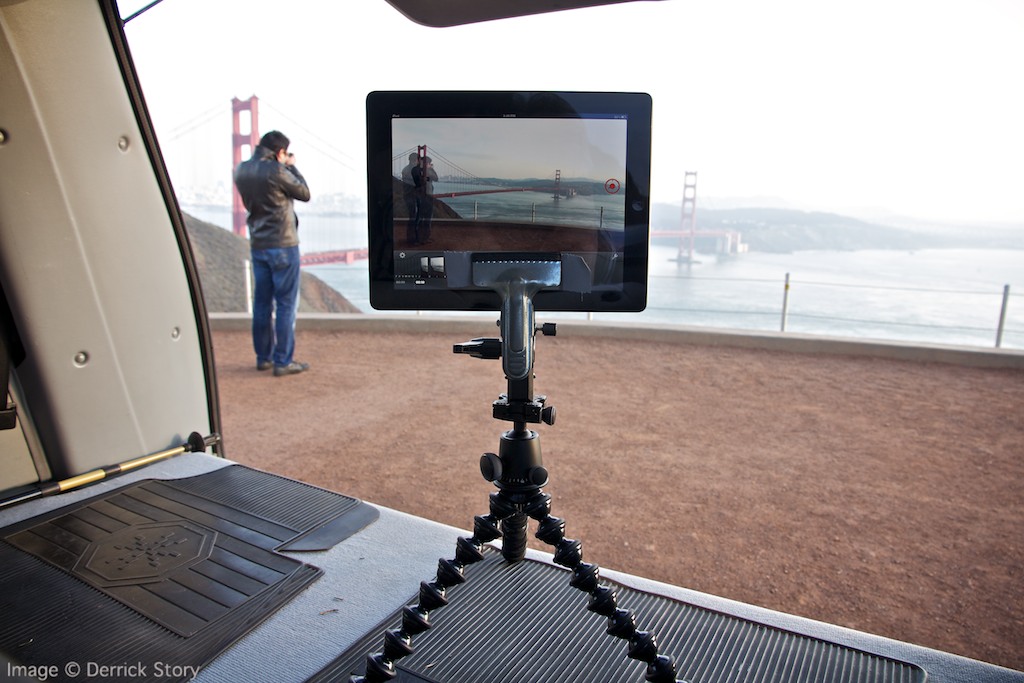
iPad 2 rig for recording "The Overlook."
The excellent battery life for the iPad, and iStopMotion's judicial use of it, allowed me to record over the course of an entire afternoon, into twilight, without having to recharge.
You have three shooting options with the software: front iPad camera, back camera, or via WiFi with the iPhone 4S (using the free companion app, iStopCamera.) I used the back camera for recording "The Overlook," but also tested the iPhone 4S camera via WiFi for making this stop motion movie. I typically shot one frame every 3 seconds when using just the iPad 2, or switched to one frame every 6 seconds when using the iPhone 4S on WiFi. You have control with the duration using this software.
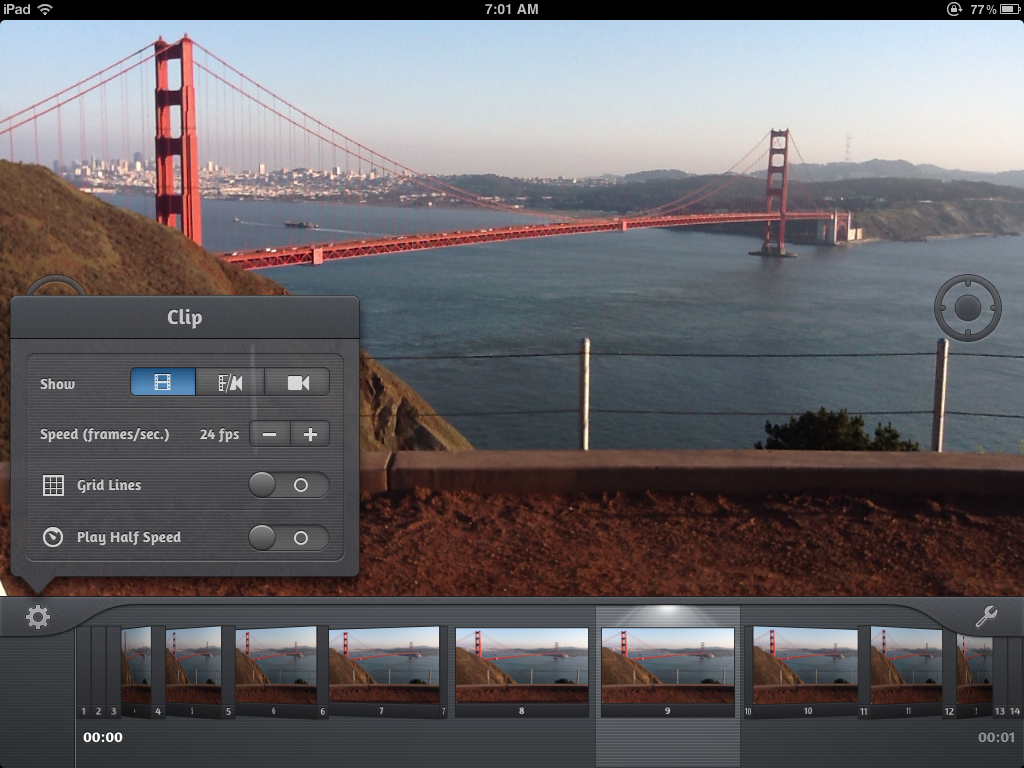
Once you've recorded your images, you can play them back at a variety of frame rates. I typically watched the movies at 12, 15, 24, or 30 fps. If you notice a few images you don't want in there, they can be deleted individually by tapping on the wrench icon.
The iStopMotion interface
Other helpful features include onion skinning, exposure setting, and grid lines. Once you have the movie to your liking, you can add a soundtrack from your music library and upload it to your Camera Roll, YouTube account, or share via email. There are three resolution options for export, including HD.
For "The Overlook," I saved scenes to my Camera Roll, then opened them in iMovie for iOS to stitch them together and add the finishing touches. I'm going to discuss this process more in next week's TDS Podcast.
The Bottom Line
iStopMotion for iPad earns a Nimbleosity Rating of 4. That's impressive considering this is the first release of this ambitious app, and we should see further enhancements up the road. Used by itself, you can create simple, but impressive stop motion or time-lapse movies, enhanced by the ability to delete frames and control frame rate. When used in combination with iMovie for iOS, iStopMotion becomes even more powerful. You have an entire recording, editing, and publishing environment, right there on your iPad.
The Digital Story on Facebook -- discussion, outstanding images from the TDS community, and inside information. Join our celebration of great photography!
I was standing among the giant balloons as propane burners brought them to life and crews steadied the crafts for hopeful liftoff. "Hot Air" was shot with a Canon 5D Mark II and edited in Final Cut Pro X.
The Digital Story on Facebook -- discussion, outstanding images from the TDS community, and inside information. Join our celebration of great photography!
You might not have thought about using keyboard shortcuts with Flickr, but I can tell you, they are fun and efficient. My favorite is the "l" shortcut to switch to Lightbox mode when viewing individual pictures.
To see how this works, plus more tips, take a look at this movie from my Flickr Essential Training title, and see what you think.
More Training Available
We have many more informative movies available in the lynda.com title, Flickr Essential Training. Stop by and learn how to get the most from your favorite photo sharing application.
Much has changed in the Flickr universe since I released the original training title on lynda.com in 2009. So I went back into the recording booth to create a brand new, updated, Flickr Essential Training for 2011.
Right now, you can view 8 free movies that cover really useful stuff, such as keyboard shortcuts, editing your personal information, and tips for using Google to search inside of Flickr.
I even have this short welcome movie to give you a feel for the tone and contents of this title.
Personally, I think Flickr is once of the most enjoyable ways to share photos and view great work by others. And if you invest just a little time with this training title, you'll get more out of this online photography site than you ever imagined.
More Training Available
We have many more informative movies available in the lynda.com title, Flickr Essential Training. Stop by and learn how to get the most from your favorite photo sharing application.
The Digital Story on Facebook -- discussion, outstanding images from the TDS community, and inside information. Join our celebration of great photography!
Smart folders are intelligent ways to pull together virtual collections of your images. The great thing is that smart folders are living creatures that continue to populate automatically as the images you add to your library meet the conditions you've set up.
Here's a short video on how to set up smart folders in your iPhoto library.
If you've just bought a Mac or upgraded iLife, and are ready to master the new features in iPhoto '11, then I think you'll enjoy iPhoto '11 Essential Training on Lynda.com. Here's a short introduction.
There's more than four hours of training presented in a series of short movies that you can watch as many times as you want until you feel comfortable with each particular technique. It's truly learning at your own pace. Even if you've never used Lynda.com before, there are three free movies that you can view right now: Working in Full Screen Mode, Hiding Photos, and Creating Smart Albums.
I receive lots of mail about how much people like learning software via my titles on Lynda.com. If you're ready to dig into iPhoto, or want to give a loved one the gift of knowledge, then take a look at iPhoto '11 Essential Training.
Many photographers believe that they need an entire suitcase full of lights to create a professional looking portrait. In this video, I show you how to use one light, a stand, and an umbrella to capture a portrait that looks absolutely great.
This movie is from my Lynda.com training series, Off Camera Flash. By spending just an hour with this course, you can dramatically improve your indoor portrait photography, whether you're on location or in your own environment.
Once you move the flash off the camera, you might want to soften the quality of its output. Here's a brief tour of light modifiers to consider for your off camera flash work.
This movie is from my Lynda.com training series, Off Camera Flash. By spending just an hour with this course, you can dramatically improve your indoor portrait photography, whether you're on location or in your own environment.
As part of a movie project I'm working on called "Home Brew," I wanted to do a little test shooting to get a feel for the environment. So I took my portable Olympus PEN E-PL1 rig on location to record the making of a batch of home-brew beer. I had to work fast, stay out of the way, yet capture some good footage. Here's a short trailer that features the home brewing of an Imperial IPA.
This super-light recording rig features an Olympus E-PL1, 14-150mm zoom, mic adapter with stereo mic taped to the bracket, and a Litepanels micro LED light for fill. If you want to know more about this set-up, tune in to the podcast, Lights, Camera, Audio: 2.8 lbs of HD Recording Power.
The Heads Up Displays, often referred to as the HUDs, are some of the application's most distinctive features. By taking just a few minutes to learn their essential keystrokes and capabilities, you can speed up your workflow considerably.
In this 2:34 movie, I cover the Inspector, Keywords, and Lift and Stamp Heads Up Displays.
Essential gear for photographers is lighter and more powerful than ever. But how light can you go and still have everything you need? How does 5.5 pounds sound? Yes, that's total weight that includes camera, computer (with full keyboard), tripod, bag, extra battery, extra memory, glasses, cables, iPod, and a few personal items. All of this for less than 6 pounds.
With this set up, I can shoot Raw+Jpeg, transfer photos from camera to computer, upload them to my website, answer email, write notes, edit my pictures, and just about any other task I need. I can use a local WiFi network or tap a cellular connection.
In this week's podcast, I list every item in my Nimble Photographer kit. Plus I include links to these items here in the show notes. You can certainly substitute items as needed, but this lineup will get you headed in the right direction.
Listen to the Podcast
Watch the Movie
In this video, I show you all of the gear that I use for the Nimble Photographer kit.
Fire is the May 2010 Photo Assignment. You can read more about how to submit on our Member Participation page. Deadline for entry is May 31, 2010.
Simone Brogini was the "Sizzlpix Pick of the Month" for Photo Assignment 49. The prize is an 11"x14" Sizzlpix of the winning photograph. Congratulations Simone! (BTW: it's pronounced "Si Mon Ne" regardless of how badly I pronounce it on the show.)
More Ways to Participate
Want to share photos and talk with other members in our virtual camera club? Check out our Flickr Public Group. It's a blast!
Aperture 3 not only lets you integrate your still images and movies into professional looking presentations, it also allows you to export your work to a variety of video formats. In this video tutorial from my Aperture 3 Essential Training on Lynda.com, I show you how powerful slideshow authoring is in Aperture.
The new HDR Toning feature in Adobe Photoshop CS5 allows you to apply HDR-like tone mapping to a single image. This means you can go back through your picture library, open a shot in CS5, and start playing with HDR Toning. No more having to shoot a series of images to play with HDR!
As cool as this technique can be, I think it's most effective as a layer to the image document instead of a standalone adjustment. But CS5 doesn't allow you to perform HDR toning to a layer. Fortunately, I learned a great workaround by watching this Chris Orwig video from his latest title, Photoshop and Bridge CS5 for Photographers New Features. The technique he recommends is to first duplicate your image in Photoshop (Image > Duplicate), then apply the HDR Toning to that picture. Once you have the effect you like, hold down the Shift key and drag the toned image on top of the original shot making it a layer. Now you have Opacity controls plus all of the other layer goodies giving you complete artistic freedom. He shows you how here:
I love the wild effects I can create with HDR Toning. And now, applying them as a layer allows me to revisit just about every image in my library.
The addition of Curves adjustment to Aperture 3 gives us powerful tonal and color correction. In this 9:00 minute video that's part of my Aperture 3 Essential Training on Lynda.com, I show you how to get started with Curves in Aperture 3.
The Apple Bluetooth keyboard can be paired to the iPad. By doing so, you open up a whole new world of input options for this device. In this video I show you how easy it is to navigate through a document, select text, copy, paste, and delete. You'll now love your iPad as much for productivity as you do for entertainment.
Compact camera zoom lenses often don't have the "reach" we'd like at the telephoto end. If you shoot at your camera's highest resolution, you can actually extend its reach without compromising quality. Here's how.
This video is from my Lynda.com training titled, Getting Pro Results from a Compact Camera. You may also want to watch these free tutorials.
More Free Photography TutorialsCompact Camera Scene Modes - A tour of the most important scene modes on a compact camera and how to use them.
Sunglasses Polarizer - How to use your sunglasses as a polarizing filter for your compact camera.
Follow me on Twitter
-
Scene modes on your compact camera are useful shortcuts for dealing with difficult lighting conditions. In this free, 4-minute video tutorial from my Lynda.com title: Getting Pro Results from a Compact Camera, I show you the most important scene modes and how to use them.
If you haven't seen my course, Getting Pro Results from a Compact Camera , it's a combination of studio live action (as seen here), live action in the field showing actual shooting techniques, and screencasting where we review the results on a computer and discuss how the techniques worked. I think it's one of my most effective training titles. I hope you check it out.
Want to see how pro shooter Matthew Jordan Smith gears up? Then watch this 3-minute video of him opening up his Lowepro Pro Roller x200 at the Sony booth during WPPI 2010.
Video by Derrick Story. Recorded with a Canon 5D Mark II and an Audio Technica lav mic.
WPPI 2010 Las Vegas: Have you ever wondered what goes on behind those closed expo hall doors right before showtime? Here's a peek at the activities at WPPI half an hour before the show floor opens.
Some vendors are already doing presentations for special invite audiences, while others are just trying to get their booth together. In this 2-minute video captured with a discreet Canon S90, you'll get a peek at WPPI that many never get to see.
When Apple enabled video trimming in Aperture 3, my guess is they wanted to enhance the Slideshow module. And that they did. You can now combine still images, video, and separate audio tracks to create beautiful productions.
After playing with this module for a few hours, however, my message to Apple is that I would prefer even more video functionality (yeah, I know). But quite honestly, the task I often have at hand is to shoot video, cut it, then upload to YouTube -- as quickly as possible. Incorporating still images and soundtracks are fun, but not the normal project.
This short movie, "Mission St., SF" was captured with a Canon T1i, then imported directly into Aperture 3 for production and export. Click through to YouTube for the HD version.
So if you have your hopes up that there's a mini Final Cut Pro inside of Aperture, you might want to lower your expectations. The video tools are extremely basic. What you can do, however, is useful.
Add and manage DSLR video clips in the Aperture library. And thanks to the improved Import dialog box, you can choose which types of files you want to upload.
Select the video clips you want to work with, then go to New > Slideshow where you can organize their sequence, add a soundtrack, add title slides, and choose some basic parameters for your presentation.
Trim video clips by double clicking on them. This is very important because the one thing that all videos need is editing.
Export your production using one of the 5 presets or custom export settings. I used the HD 720 preset for this short movie.
I know it seems odd to use the Slideshow module for your video editing. But I think that's due to Apple's original concept for video management in Aperture. I wouldn't be surprised if up the road we see a dedicated module for handling movies. In the meantime, however, this is a huge addition to Aperture 3. And it will make my life more efficient and productive.
Photo artist Stephanie Scheetz shows you how to take everyday, boring gift boxes and transform them into personalized works of art using your photographs. These boxes make great gifts, or they can be used for decorative organization around the house. Stephanie walks you through this process, step by step.
This tutorial is part 1 of a two-part series. In the next show, you'll learn how to create a box from scratch by simply folding paper, including stock that has your imagery printed on it. Stay tuned!
Other Creative Output Projects with Stephanie
Stephanie has many more creative output projects waiting for you. Just visit our Creative Output section, right here on The Digital Story. Some examples are:
The MoGo Talk Bluetooth headset fits in its iPhone protective case so you always have hands free with you. But it also allows you to pair with up to five devices. So I've tested it with Skype, and as in this movie, even using it for video recording. This movie introduces you to the MoGo Talk headset, which sells with iPhone protective case for about $130.
As a headset for the iPhone, it's fairly impressive. It's only 5mm thick and weighs 9 grams. The iPhone case that it's mounted in doesn't really feel any thicker than the case I was using before, yet the MoGo case contains a BT headset that is always there and ready to go. There's a pop up mini-USB port on the case that allows me to charge the MoGo Talk when I'm charging the phone. I give it some juice every other day. Talk time is between 3-4 hours.
People on the receiving end of my conversations say that they can tell I'm using a headset, but that the sound quality is good. It picks up a little ambient noise. On the receiving end, the ear piece is comfortable (you have a handful to choose from) and the sound is quite good. The MoGo talk adjusts the volume automatically based on environmental noise, but you can override it by adjusting the volume on the iPhone itself.
Overall, I think this is truly an innovative product. And the fact that I can use it for my Skype calls on the computer is a bonus.
Often referred to as "shrinky dinks," shrink plastic artwork is easy to create using your own images, and inkjet printer, and a conventional oven. In this video tutorial, Stephanie Scheetz shows you how to print your pictures on the special plastic surface, then bake them into beautiful jewelry. You even get to peer inside the oven as the transformation happens before your eyes. This is episode 5 of the ongoing Creative Output series on The Digital Story.
If you want to find out more about the media Stephanie is using to create the shrink plastic jewelry, visit the Grafix web site. You can see more examples of this technique by checking out her post titled, Shrink Plastic Charms.
Other Creative Output Projects with Stephanie
Stephanie has many more creative output projects waiting for you. Just visit our Creative Output section, right here on The Digital Story. Some examples are:
Painting without a brush. Artist Tim Mancusi joins Stephanie Scheetz and demonstrates how you can transform your photographs into beautiful works of art. Tim begins with a photograph, then creates a stencil from it using a simple craft knife. He spray paints over the stencil on to art paper to render his unique portraits. It's a great technique for photographers who always wanted to paint, but never mastered working with a brush.
Tim shows you everything you need to know, step by step. Start with one of your photographs, cut out areas with a craft knife, tack the stencil to your blank paper, then spray paint. The finished product is truly artwork, and you are the sole creator of every element.
Other Creative Output Projects with Stephanie
Stephanie has many more creative output projects waiting for you. Just visit our Creative Output section, right here on The Digital Story. Some examples are:
Inside what looks like a typical shopping mall, within walking distance of the Fukuoka Tower, is one of the most amazing retail establishments I've ever visited: Robosquare. It's a combination of tech museum, research facility, and toy store for geeks. In the spacious visitor area there are dozens of robots on display. Some are for sale; others are just to marvel at. Off to the side behind glass windows is an assembly and research area where you can watch technicians work on various robotic projects. Everywhere you turn, there is something to excite the senses.
It was a lucky find for me. I had been traveling on my own during this visit in Fukuoka. But there were times when I would end up at the same places as my shipmates. People would spot me, we'd compare notes on the day, then go our separate ways.
I had already been to the top of Fukuoka Tower, and I was hanging around downstairs contemplating where to go next. It was hot outside, so I wanted to make a good decision before leaving the comfortable air conditioned environment where I had just finished lunch. At that point I spotted a few of my comrades getting ready to go up the tower. They were part of an excursion. A few in the group hated heights and had asked for something else to do while the rest took the elevator to the top. The tour guide lived locally and suggested the Robosquare. As they were dashing off to see the robots, one of them mentioned the diversion to me. "Perfect," I thought. So I dashed off with them. The beauty of my situation, however, was that I could stay there as long as I wanted. They had to rejoin the tour 20 minutes later. It took me an hour to pull myself out of the store.
Part of what kept me engaged were the three demonstration areas that had robots in action. One in particular, the baby seal, was impressive. This robot had been developed to comfort the elderly who were in extended care facilities, often without companionship. The seal could locate people in the room, make eye contact, then interact with them. If the person pet the seal, it would really turn on the charm. The combination of movement and sound were very compelling, enhanced by the thick fur that felt so good to stroke. Within minutes, I felt better myself, and I was in great shape to begin with. What a truly marvelous invention.
Then, after I had looked over every display twice, I went to the shopping area where there were plenty of projects to take home and build. I opted for a couple car kits and a robotic pencil sharpener. They'll make great presents for a couple of boys back home. But there was plenty more, including Lego Mindstorms, robotic arms, and simple kits too.
As I walked out with my purchases, I was thinking that sometimes you just need to be in the right spot at the right time. Robosquare was definitely a good spot for me.
Photos by Derrick Story, captured with a Canon T1i DSLR. For more photography from Asia, visit the TDS Flickr page.
The camera in the iPhone 3GS has improved close-up capabilities, tap focus, and more resolution than previous models. You can use the 3GS to photograph small objects, business cards, even duplicate 4" x 6" prints. With this DIY copy stand that's easy to make, you can produce high quality images with just a couple taps on its screen.
If you've ever tried close-up work with the iPhone, you know you have two challenges. The first is holding the camera steady enough to avoid camera shake. The second is getting the plane of the camera parallel to the plane of the subject to avoid distortion. This little device helps with both, plus diffuses the light for a more flattering rendering.
I have step-by-step photos showing the key elements of this project on The Digital Story Flickr page. In short, it works like this. You remove the tray from the iPhone packaging, drill a hole in it for the lens to see through, cut an opening in the bottom of a translucent box to set the tray in, and you're done. It's really that simple. I recommend that you start with a box that's at least 6" tall. That will give you enough distance to copy 4" x 6" prints. You can use "risers" such a little boxes to photograph smaller items that need more magnification. Here's a short instructional video that provides a nice overview.
Please feel free to add your comments, improvements, or variations on this project. The iPhone 3GS is a handy little camera, and I want to squeeze every ounce of capability out of it.
This week Stephanie begins by taking you shopping to a bargain store,
then heads back to the studio to design a custom notebook that
features your photography on the cover. Even though they are easy to
assemble (and very affordable), these beautiful notebooks make excellent
gifts.
You'll learn, step by step, how to take apart an existing notebook, customize the front and back covers, then reassemble it. The final product becomes an expression of your art.
Your photos can be used to make beautiful custom gift bags. And the best part is, you don't even need a photo printer. Stephanie Scheetz shows you how to transform your images, printed on regular white office paper, into personalized gift bags that will impress your friends and family. All you need is a little tape and Stephanie's expert guidance.
Meet Stephanie Scheetz. She's a photographer, an artist, and is very handy with do it yourself crafting projects too. In this first of a series of "Creative Output" instructional videos on The Digital Story, Stephanie introduces herself and previews a couple of the projects she'll be showing you in upcoming episodes.
Editor's Note: I had a conversation on Twitter with Kip Beatty about the difficultly of editing HD video from the Canon 5D Mark II in Apple's iMovie '09. Kip said he had researched a solution, and I want to share his findings with our readers. Here's what Kip Beatty wrote.
The Canon EOS 5D Mark II shoots stunning 1080p 30 fps video. However, if you're using iMovie '09 to edit your movies, you'll find using anything but a Mac Pro to edit the native .264 files from the camera will bring iMovie to its knees. In fact, Apple recommends using the "Large" (960 x 540) setting when importing movies from the 5D Mark II. Even if you don't encounter the unexpected quits mentioned in the support document, you'll likely encounter a lot of stutters, pauses, and sluggishness. A simple workaround is to convert the .264 files to iMovie's preferred AIC (Apple Intermediate Codec) format using the free MPEG Streamclip.
Copy your movie files from your CF card to your computer (you can, if you prefer, convert them directly from the CF card). Open MPEG Streamclip and open the movie you want to convert. From the File menu choose Export to Quicktime... (CMD-E). At the top drop down menu, change the compression to Apple Intermediate Codec and slide the quality slider to 100 percent. You may also wish to open up the Adjustments options and bump brightness, contrast, and saturation just a bit to get an exact match, but be very conservative with any changes to these sliders (I'd suggest running a couple of tests on a small file to get the look you like). Click Make Movie and you're done with MPEG Streamclip.
You'll find the resulting file, once imported, plays much more nicely with iMovie, especially on a MacBook Pro or iMac. Unfortunately, you'll also find the resulting file is much larger than the original .264 version. In my tests, it's almost twice as large. This is the main drawback to using AIC. Nonetheless, if iMovie is choking on your native files, it's a worthwhile tradeoff. If you're going to do a lot iMovie editing with AIC converted files from the EOS 5D Mark II, you'll need a lot of storage space. Look at it this way, it's a great excuse to pick up a DroboPro.
I'm posting a link to this excellent article about Final Cut Server because A) it's interesting B) it's good, and C) this is something that I would love to see for still photographers using Aperture or Lightroom. Having a robust asset server that works with our desktop photo applications would be terrific. I'm hoping that this is a glmpse into the (near) future.
If you have your own web site, QuickTime Pro makes it easy to take video snippets off your digital camera and post them there. Its "Export for Web" option under the File menu presents you with some sophisticated publishing options... except now they're as easy to implement as checking a box.
The process couldn't be simplier. Open the movie you want to publish. Choose "Export for Web" from the File menu. Select the options you want: iPhone (WiFi), iPhone (cellular), and/or Desktop. Choose as many as you want. When you hit the Export button, QuickTime will create a folder with the different versions of the movie in there. It also creates a web page with instructions for publishing to your site.
My little bonus tip is this. Open that web page of instructions in your text editor, change the text to what you want to say, save the html file as a new name, and upload the entire folder to your web server. That page contains all the scripts you need, perfectly formatted, and pointing to your movie. As long as you leave everything in the same folder, you're set.
That's how I created this version of A Visit to the Tampa Aquarium. It is viewable in a web browser, on Apple TV, or on an iPhone. The built in script identifies what type of device is accessing the page, then serves the appropriate movie for that device. It's really quite clever.
You already know that I'm a big fan of the movie mode on our digital cameras. Now sharing those movies on your own web site is as easy as capturing them in the first place.
QuickTime Pro 7.2 offers new export presets for the iPhone and other mobile playback devices -- both via WiFi and cellular networks. This makes it easy for digital photographers to share the movies they capture with their compact cameras. The iPhone provides excellent video playback, and many other mobile units do quite well also. Preparing the video for these devices is a snap.
First, capture the movie with your digital camera at the highest quality settings possible. This leaves your options open for other uses up the road, such as DVD burning for TV playback. Then make sure you have the most current version of QuickTime Pro. Open the movie, choose File > Export, then select the compression preset from the Export pop-up menu.
If you're preparing your movie for high quality playback on the iPhone, choose the "Movie to iPhone" option. If you want to stream movies over a cellular network to other mobile users, choose the "Movie to iPhone (Cellular)" option. (There's also a very nice "Movie to iPod" option for video-enabled iPods.) To give you a feel for the size differences, I started with a 20 MB video, then tried the two different export presets. The higher quality "Movie to iPhone" rendered a 3.1 MB file, while the Cellular version was smaller in dimensions and file size (348 KB).
If you want to learn more about movie capture with your digital camera, listen to Podcast #3. You can also download the QuickTime 7.2 User Guide from Apple.
You've got a HD monitor mounted on the wall with Apple TV feeding it your pictures and movies. After you've gone through your library a few times, now what? Hey, fire up YouTube and watch the circus around us that we fondly call real life.
According to a recent Apple press release, YouTube is coming to Apple TV. That's great in terms of variety of content, but do I really want to see those low resolution videos in unforgiving HD? Then again, it probably beats the heck out of late night television.
If you have an iPod Video (5G), and want to quickly convert your existing QuickTime movies so you can watch them on your iPod, here's how to to do so using iTunes 6 or later.
Use the "Add to Library..." command to bring your movie into iTunes.
Click once on the movie to highlight it.
Choose Advanced > Convert Selection for iPod.
iTunes will convert your video to the appropriate format then add it as a copy to your iTunes library. I recommend that you adjust the ID3 tags before connecting your iPod and uploading the new movie. Here's how you do that:
Click once on the movie to highlight it.
Go to "File > Get Info.
Click on the Info tab.
Add information in the Name, Artist, and Comments fields. Choose "Video" for the Genre.
If you think about it, this is amazing technology we have. You can capture movies with your compact digital camera, rip them in the free iTunes application, then upload and playback on your iPod video. Wow!
There are so many different ways to present 50+ images from Western Mexico. Instead of a web page, I've opted for this video slideshow with music. You can watch it on your computer, and it's also iPod video compatible. To upload it to your iPod, all you have to do is add it to your iTunes library, then sync.
The video starts out with a series of images from Cabo San Lucas. I photographed them with a Canon Digital Rebel XT and either a 17-40mm L or 75-300mm IS lens. I worked both in town and on the outskirts. Everything shown in the first series was within walking distance of the port, although I did a lot of walking.
Then there's a transition with the gull shot (the one featured in this post) and a sunset. Now you'll find yourself in Mazatlan. This was my favorite destination, as you'll see from the sheer number of photos I shot during this day. Then another sunset shot, and you're in Puerto Vallarta watching a parasail being prepared for the first flight of the day. You might want to ready my story about The Night of the Iguana to help you understand the setting for the next series of shots. I then wrap up the show with a series from a couple villages I visited south of the city, then back to port at night.
To make this presentation, I first assembled the images and added the music in iPhoto 6 using the Slideshow function. I then exported the presentation to my Desktop. Next, I opened the video in QuickTime 7 and reviewed it to ensure it played back correctly. To make the presentation iPod compatible, I then exported out of QuickTime using the "Movie to iPod" setting (File > Export > Movie to iPod). Now the video can be played on both the computer and the iPod.
If you want to watch this travelog of Mexico, you can download the movie here (16 MBs, 4:14 minutes, fast start playback in your browser). The music title is "Montoya Malaguena" by Carlos Montoya. You can find more of his work in the iTunes Music Store by searching on "Carlos Montoya." Hope this provides you with a good introduction to an excellent photo excursion destination.
You can download Jerry Seinfeld and a host of other great personalities on FLiXPO...
One of the questions readers have been asking here at The Digital Story is if we're going to offer more video content. Indeed we will, but you can download lots of terrific stuff right now at FLiXPO, a brand new service offering comedy, indie video, movie trailers, and funny ads.
Simply browse FLiXPO's various "Channels," preview the clip you're interested in, then choose either the "iPod" or "PSP" link. I downloaded a Jerry Seinfeld standup routine. After a brief wait, the video appeared in its own browser window. I selected "Save as Source" from the dropdown menu in the lower right corner of the QuickTime window (look for the downward pointing triangle), and saved the clip to my Desktop.
I then opened iTunes and dragged the clip to my video playlist. I noticed that the ID3 tags were a little sparse, so I highlighted the title by clicking once on it, then went to File > Get Info. There I clicked on the Info tab and proceeded to clean up the title text, add Jerry as the artist, and choose "Video" for my Genre.
Everything looked ready to go, so I connected my iPod video and uploaded the FLiXPO video. The upload went smoothly and within a few minutes I was watching Jerry do his "Milk" routine right there on the screen of my iPod. The video was quite decent, and the audio was robust and of fair quality. A FLiXPO logo was permanently positioned in the lower right corner of the screen. The price you have to pay for a freebie.
At the end of the clip, you get a quick FLiXPO splash screen, and that's it. The entire process was quite painless and well worth the effort. So if you want to build up your short video collection for your iPod or PSP, I recommend taking a look at the free offerings in FLiXPO.
I've been experimenting with the movie-making capabilities of digital cameras for quite some time. And I've found that they work great for short subjects. I'll be publishing these movies on a regular basis here. They will be optimized for both computer and iPod playback. So if you've purchased one of the new iPods with video capability, this movie, and the ones that follow, will look great on the 'pod.
Today's film, "The Potting Bench," was shot with a Contax SL 300R T* at 640x480 @ 30fps. To get better audio than what the Contax can record with its onboard microphone, I used an iPod 3G with a Belkin microphone adapter. I then synched the audio and video in QuickTime Pro -- all very simple tools.
Scene from "The Potting Bench," a movie about the follies of easy-to-build home projects.
I added the opening in closing titles in QuickTime Pro too. If you're familiar with the free set of QuickTime AppleScripts, take a look at the "Rolling Credits for Front Movie." It's what I used to create the opening and closing titles for this piece.
Note: I'm using a relatively new codec here -- .m4v -- that requires the latest version of QuickTime or iTunes. If your browser doesn't download it easily by simply clicking on the link, then right-click or ctrl-click on it and choose "Download linked file..." Once the file has downloaded to your desktop, or wherever you put this content, you can open it in QuickTime 7 or iTunes 6. Post a comment if you have more to add :)